 LibSpace Blog
Welcome to LibSpace
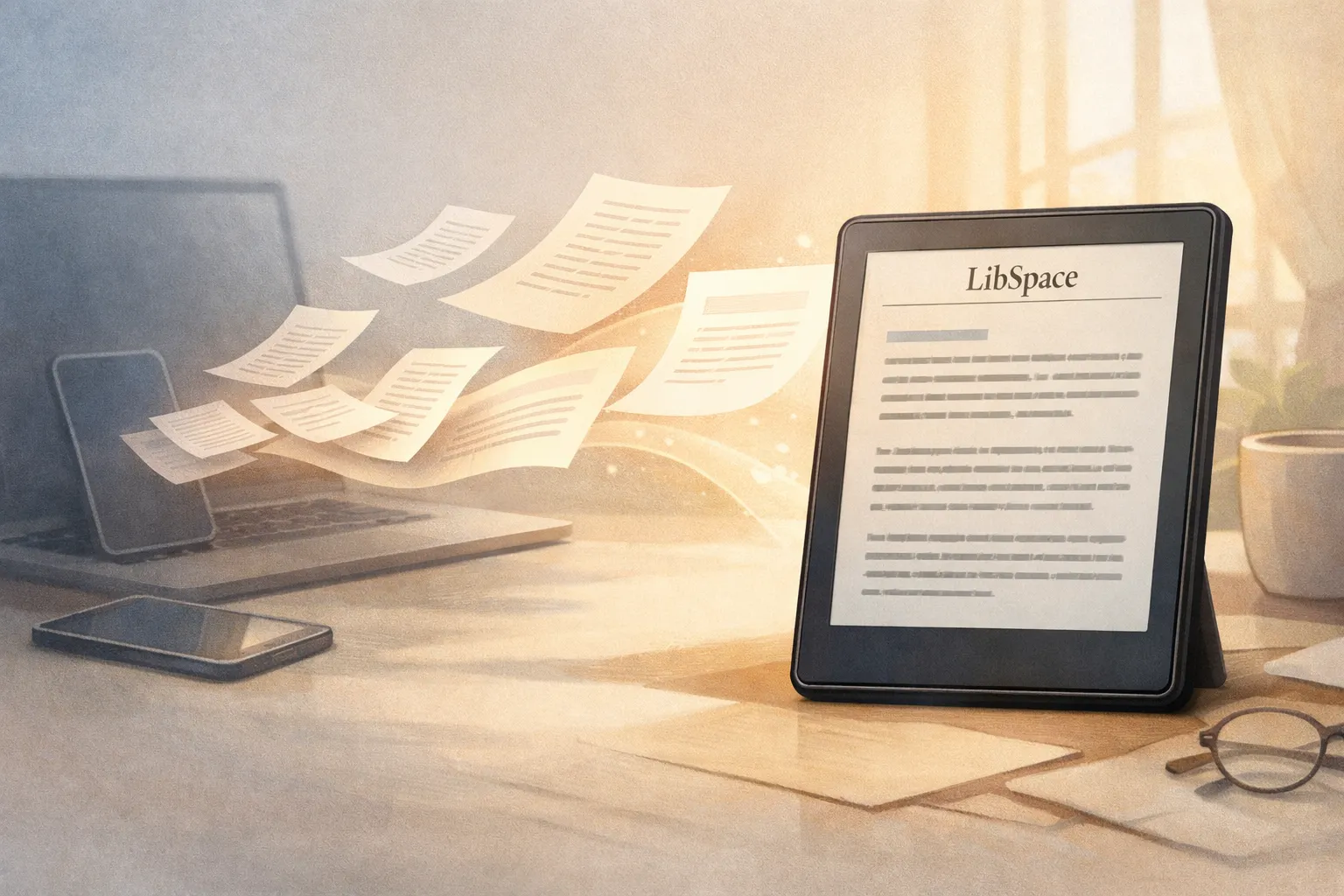
LibSpace helps you save articles, newsletters, and documents from around the web and read them on your e-reader, phone, or anywhere - distraction-free.
If you’re tired of reading on glowing screens, you’re in the right place.
The Three Ways to Use LibSpace
1. Browser Extension
The fastest way to save anything you find on the web.
Chrome: Install from the Chrome Web Store, pin it to your toolbar, and click the LibSpace icon on any article you want to save.
Firefox: Get the Firefox extension from Mozilla Add-ons.
Safari: Get the Safari extension from the Mac App Store.
When you save an article, LibSpace extracts just the content - no ads, no popups, no cookie banners. Just words.
When you have an e-reader connected, you can sync your curated content directly to it, either automatically or manually.
The browser extension saves web pages to your library as an EPUB and HTML. This is best for long-form articles. LibSpace is optimized for readers - end-to-end from mobile to web to e-reading, not just bookmarking.
2. Mobile App
Our iOS and Android app is a full-featured EPUB reader. Read your saved articles, highlight passages, and pick up exactly where you left off.
Your reading progress and highlights sync across all your devices. Start reading on your phone during lunch, finish on your e-reader before bed.
Note: As of January 2026, the Android app is coming soon. Let me know if you’d like to be added to the beta test group and I can send you an install link!
Pro tip: You can install the Android app on your Android e-reader and it has E-INK mode!
3. Web App
libspace.io is where you can do everything from account setup to reading content in a browser to managing your integrations, highlights, and comments.
Connecting Your E-Reader
LibSpace works best when connected to an e-reader. We directly support:
- Boox Devices - Connect your Boox account for instant sync. Articles just appear in your Boox library.
- Kindle - Set up Send-to-Kindle email forwarding. Articles arrive as clean, formatted documents.
- Android e-readers - Install the Android app (including on Boox devices).
Head to Settings → Integrations to connect your devices.
RSS Feeds, Newsletters, and Your Forward Email
Email Forwarding
We give you a unique forwarding email address.
You can forward emails to your LibSpace email and they appear in your library - including their attachments. If you have an EPUB, MOBI, or PDF that you want to get into your library, just send it as an email and it appears.
RSS Feeds
You can subscribe to RSS feeds and articles arrive automatically in your LibSpace library.
Newsletters
There’s some setup for subscribing and approving newsletter subscriptions - it’s just part of the process with newsletters. They all work similarly but different enough that it’s a topic of its own. You’ll see a follow-up article just about setting up newsletter feeds.
In short: newsletters exist, they import to your library, and can auto-sync to your connected e-reader device if you like!
Highlights That Go Somewhere
When you highlight a passage in LibSpace - whether on your phone, e-reader, or in the web app - it’s saved and synced everywhere.
No more lost highlights. No more “I know I read something about this somewhere.” You can highlight and comment on text, keep it, and refer back to it.
Highlights also sync to Readwise, Notion, Google Drive, and Dropbox.
Integrations
Readwise
Bi-directional - We sync highlights and comments to Readwise, and we sync your highlights from Readwise back.
Notion
Uni-directional - We sync highlights and comments to Notion as a destination.
Google Drive
Bi-directional - Load data from your Google Drive such as ebooks or files. We export .md and .doc highlights back to Google Drive.
Dropbox
Bi-directional with watch folders - Dropbox is the best way to keep an e-reader synced with LibSpace. Set up a watch folder and we can output data that your e-reader ingests. Drop any content into that watch folder and it’ll get synced to LibSpace.
You can get content into your library and to your devices a number of different ways. We either support the e-reader directly or you can use Google Drive or Dropbox to sync content to them.
What’s Next?
You’ll see more articles like this appear to help you get the most out of LibSpace:
- Setting up email forwarding for newsletters
- Using the LibSpace mobile reader
- Tips for organizing your reading and how tagging and auto-folder organization works
These will appear automatically in your library - good practice for when your RSS feeds start flowing in!
Questions?
LibSpace is an army of one! Me.
Email us at support@libspace.io or tap the contact button in the web app. I will get back to you.
Happy reading!
— Darcy, Founder